HACKERS UNDERGROUND © 2012 BY RISHABH SHARMA
Showing posts with label mobile. Show all posts

Friday, 13 January 2012

CHANGE UR MOBILE PARTNER SCREEN


go to Huawei DASHBOARD installed folder and find skin folder
extract zip file and replace both file in that folder (b4 replacing back up ur old skin

file)...it will only change theme of Huawei DASHBOARD...


if u want to change the background picture do this.......
go to this folder - Huawei DASHBOARD\plugins\DialupUIPlugin
u ll find a picture called OperatorBand.png backup that picture 1st..........now
replace that picture with ur own picture....that picture must b in png format 740x407
pix...
ur done.now open Huawei DASHBOARD .........
SKIN FILE DOWNLOAD HERE

http://uploadorb.com/jalbf4zdswmm

-------------------------------------------

Huawei Connection Manager
25.005.26.00.11


With All Indian Profile
New LooK
Driver Updated 4.23.02.00


Huawei Connection Manager DOWNLOAD link http://www.multiupload.com/MQS0GIAVD0
________________________________
Mobile Partner 16.001.06.01.500 updater WITH ALL INDIAN PROFILE, CALL, VIDEO CALL, SMS, MMS, USSD, DATA LIMITER

WITH LATEST HUAWEI DRIVER
MOBILE PARTNER DOWNLOAD link 1http://www.4shared.com/folder/0b__rEyI/_online.html
MOBILE PARTNER DOWNLOAD link 2http://uploadorb.com/iqmkf8o6rivh
_________________________________

Huawei Modem Latest Drivers Version 4.23.02.00

Release Notes:-
*Add a new feature for disable LLMNR.
* Disable remote-wakeup while S3 S4 S5.
*Fix the Lenovo will open in the whole test PCUI port,and register a Notification,in order to close the port before the port state changes (such as Disable),but we registered this change will result in Lenove Notification failed,so APP can not get port status change notification,in can not close the port.This led to a failure of the whole test items(Disable/Enable)
*Fix the PC power state fome S0 to S3,asked board to reflect the correct side of the power state of the S0 to S3.
* Fix the supporting E353s products,wake up after standby NDIS dial,dial-up barrier after the success of Ping.
* Fix the Jungo driver Balong LTE
platform supports the Northern Research products,combined into the AT^SYSINFOEX need to replace the original command does not support the AT^SYSINFO LTE products command.
*Fix the In frequency of AWS or W900,download an upload concurrently,after 5 minutes,rate drop to Zero.
*Fix the Six operating segments corresponding to the operator firm name does not appear in the WWAN at.
*Fix the issue that failed to get IP address while connecting after resume from standby on some special computers.
* Fix the issue that failed to get correct NDIS connection state after resume from standby on some special computers.
* Fix the issue that failed to ping with automatical test tool Airflux after connected with NDIS.

Huawei Modem Latest Drivers Version 4.23.02.00 Download Link
http://www.multiupload.com/MHF0FQLP99
_________________________________
all huawei modem supported
Huawei Modems

Huawei E156
Huawei E156C
Huawei E155
Huawei E155X
Huawei E156G
Huawei E160
Huawei E160E
Huawei E160G
Huawei E161
Huawei E166
Huawei E166G
Huawei E169
Huawei E169G
Huawei E170
Huawei E170G
Huawei E172
Huawei E172G
Huawei E176
Huawei E180
Huawei E180S
Huawei E180G
Huawei E181
Huawei E182
Huawei E182E
Huawei E196
Huawei E216
Huawei E219
Huawei E226
Huawei E230
Huawei E270
Huawei E271
Huawei E272
Huawei E510
Huawei E612
Huawei E618
Huawei E620
Huawei E630
Huawei E660
Huawei E800
Huawei E870
Huawei E880
Huawei EG162
Huawei EG162G
Huawei EG602
Huawei EG602G
Huawei E1550
Huawei E1551
Huawei E1552
Huawei E1553
Huawei E1609
Huawei E1612
Huawei E1615
Huawei E1616
Huawei E1630
Huawei E1632
Huawei E1690
Huawei E1692
Huawei E1803
Huawei E1820
Huawei S4011
Huawei K3517
Huawei K3520
Huawei K3710
Huawei UMG181
Huawei EM770

Vodafone Modems

Vodafone K2540
Vodafone K3250
Vodafone K3512
Vodafone K3515
Vodafone K3520
Vodafone K3565
Vodafone K3715
Vodafone K4505


IF U LIKE MY WORKS THEN HIT THANKS AND REPUTE ME

post by rishabh sharma hackersunderground

Friday, 23 December 2011

Download Avast Mobile Security Beta For Android

Avast has launched Beta version of its Mobile Security for android devices.Theft Aware which is priced around 4 USD comes pre bundled with Avast Mobile Security for free .This is one of the most comprehensive security suite that is capable of competing against rival paid products.
Avast has always distinguished itself from other companies by releasing quality products for free be it Antivirus for computers or Mobiles.

Major Highlights of Avast Mobile Security Beta

  • Protect your personal data with automatic virus scans and infected-URL alerts.
  • Stop hackers by adding a firewall (rooted phones).
  • Control anti-theft features with remote SMS commands for: history wipe, phone lock, siren activation, GPS tracking, audio monitoring, and many other useful tools.
  • Your ‘invisible’ app hides itself, making it extremely hard for thieves to find and disable.
  • A standalone yet tightly integrated component of avast! Mobile Security, avast! Anti-Theft is the slyest component on the market. Formerly known as Theft Aware, the Anti-Theft portion of avast! Free Mobile Security has been recommended by leading industry experts that include T-Mobile, N-TV, AndroidPIT, and Android Police.
unnamed 1 Download Avast Mobile Security Beta For AndroidAvast Free Mobile Security thumb Download Avast Mobile Security  Beta For Androidunnamed 2 Download Avast Mobile Security Beta For Android
It is compatible with all popular android versions including 2.1.x ,2.2.x and 2.3.x .But it has been tested on limited number of tablets so it may have some glitches while running on android 3.0
You can download it directly from Android Market

Wednesday, 2 November 2011

Phoenix_Service_Software_2011


New:
* Nokia Connectivity Cable USB Driver Version 7.1.23.0;
* Flash Update Package 09.050.025;
* Menu item WLAN Auto tune added for E72 product;
* New RF Losses.ini v 47 for auto tune;
* Product Code Change - window is now scalable, SW version information for variants can now be seen if window is made larger.

Corrected and amended:
* Support for FPS-8 and FPS-11 Flash Prommers removed;
* Lighthouse Flasher Bluetooth - the menu is removed;
* Test Flash Memory removed;
* Changes to WLAN UI, to support new versions of components WLAN;
* Auto tuning components, updated to the new version;
* Label, printing changes, to improve the handling of senior package configuration data. If the product has an older configuration of the data packet, the user is advised to allow the choice of label printing UI;
* Improvements to Download Data. When the computer has an active Internet connection, product code, some SW files downloaded from the firmware storage. Please note that the path to upload files should also be formed to "Options / Location Product" - UI. If the path is not the same, SW downloaded files are not found;
* Registration error for manual tuning component level of authority TX corrected;
* Minor Menu Changes for RM-598 and RM-604.

What is included in the VMware image:
1. OS
OS Windows Xp Sp3 Game Edition
Zero, clean, specially lightweight, fully working version of Windows XP. Stable and works as a fast workstation. The installed version is less than 1 giga (including system files user), so it is perfect for working in a virtual environment, VMware.

2. Utilities to work with Nokia phones
Phoenix Internal Service Software 2009.20.10.39068
J.A.F. Software 1.98.62 (addon 2.0 by JayDi)
MobiMB Media Browser 3.5.31
NaviFirm 0.1
Nokia Unlocker 1.0b
Nokia Connectivity Cable Driver 7.1.17 (NCCD)
MSXML 6 Parser


Hit Thanx If U like My JoB

Phoenix_Service_Software_2011.02.000.44842.exe.zip

Saturday, 22 October 2011

Friday, January 28, 2011 0 Run android application on your PC (Windows).

As an android user, do you want to experience the android application before installing it in to your android? Yes I have got something for you to experience the android application on your PC. Yowave.

Yowave is a software platform developed for running android application on your PC (Windows XP and 7).

How to emulate Androis application on your PC?

You have to install Youwave software in your PC.
Download the android application in to PC.
Load it in to the Youwave .
Run the android application.

Download the Android PC emulator.

youwave android emulator free


Features of Youwave.


Supports Android 2.1
Install application in to routed phones.
Visual browsing.
Multiple applications can be emulated simultaneously.
It is free!!!!

Tags: PC emulator, Desktop, Try before you use

Use Mobile Phone As Webcam

This tutorial will show you How to use your mobile as a Webcam.
Many of us don’t have Webcams and might want to use your mobile as a Webcam to save on some cash and also to put your mobile camera to better use.
You will need to install your Bluetooth stack / drivers – Microsoft, Bluesoliel, Widcomm etc if you plan to use Bluetooth to connect your phone and PC. You will also need to install Nokia PC Suite in case you are using a Nokia phone.
There are two applications to use your mobile as a Webcam:
1. Mobiola Webcam
Download Mobiola Webcam

Mobiola Webcam is the most popular Webcam software for mobiles, it is compatible with many phones – Symbian S60, S60 V3, UIQ, Windows Mobile, Blackberry etc. In case it isn’t compatible with your phone, but your phone supports J2ME, you can use the Mobiola Webcam Lite version. It runs on almost all J2ME phones. In case, you have some prehistoric phone with no J2ME support, then it’s time to dump it and get a new phone.


:D
Just download Mobiola Webcam / Webcam Lite from the above links after selecting your platform. Install the Mobiola Web cam setup on your PC and transfer the mobile sis / jar file to your mobile and install it. Be sure to give it all the access permissions it requires during installation.
Just start the Mobiola application on your mobile and PC. From your mobile, select Options > Connect and select the connection method – Bluetooth, USB or Wi-Fi. We would recommend connecting via data cable as it is faster. After you are connected, you can use the mobile camera as your Webcam. Just start your favourite application and in the Video / Webcam options, select the Mobiola Webcam / Your Phone. You can adjust the video quality, contrast and brightness from Options > Settings.
2. WWIGO (Webcam Wherever I Go)
Download WWIGO
Alternate Download Link – WWIGO
WWIGO is also a nice little application that allows you to use your mobile camera as a Webcam. It supports connections via Bluetooth only though. Just download the application from the above link and install it. After installation, navigate to your Program Files directory and get the WWIGO mobile application from there. Transfer it to your mobile and install it.
Now start both the PC and mobile WWIGO applications. Now select an GPRS access point in your mobile, and select Options > Connect. Select your PC as the Bluetooth device and let the PC and mobile WWIGO applications connect.
After the connection is done, you can use your mobile camera to record videos as a Webcam. To use it as a Webcam, open the Webcam / video settings of your application and select WWIGO as the Webcam. You can adjust the video resolution and zoom levels from Options > Settings
That’s it, You are done. Happy Chatting.
Note: Yea, I know there are loads of similar tutorials everywhere. But as I was running out of ideas to write on, I thought this would be fine. :P
Just download Mobiola Webcam / Webcam Lite from the above links after selecting your platform. Install the Mobiola Web cam setup on your PC and transfer the mobile sis / jar file to your mobile and install it. Be sure to give it all the access permissions it requires during installation.
Just start the Mobiola application on your mobile and PC. From your mobile, select Options > Connect and select the connection method – Bluetooth, USB or Wi-Fi. We would recommend connecting via data cable as it is faster. After you are connected, you can use the mobile camera as your Webcam. Just start your favourite application and in the Video / Webcam options, select the Mobiola Webcam / Your Phone. You can adjust the video quality, contrast and brightness from Options > Settings.
2. WWIGO (Webcam Wherever I Go)
Download WWIGO
Alternate Download Link – WWIGO
WWIGO is also a nice little application that allows you to use your mobile camera as a Webcam. It supports connections via Bluetooth only though. Just download the application from the above link and install it. After installation, navigate to your Program Files directory and get the WWIGO mobile application from there. Transfer it to your mobile and install it.
Now start both the PC and mobile WWIGO applications. Now select an GPRS access point in your mobile, and select Options > Connect. Select your PC as the Bluetooth device and let the PC and mobile WWIGO applications connect.
After the connection is done, you can use your mobile camera to record videos as a Webcam. To use it as a Webcam, open the Webcam / video settings of your application and select WWIGO as the Webcam. You can adjust the video resolution and zoom levels from Options > Settings
That’s it, You are done. Happy Chatting.
Note: Yea, I know there are loads of similar tutorials everywhere. But as I was running out of ideas to write on, I thought this would be fine. :P

Monday, 12 September 2011

HTC Ruby Pictures and Specifications Leaked

The phone you are looking at is the HTC Ruby. We had already shown you the leak when the phone was spotted in a reflection of the HTC Flyer’s screen. It might also be known as the HTC Amaze 4G on the T-Mobile USA network.
The phone has a 4.3″ display with qHD (540×960 pixels) resolution display. The other specifications are:
  • 1.5 GHz Dual Core Processor
  • 1GB RAM
  • 16GM Internal memory
  • 8 Megapixel Camera with Dual-LED Flash
  • Android 2.3 Gingerbread with HTC Sense 3.5 UI
The prototype in the pictures doesn’t seem to have it installed. This could be due to the fact that T-Mobile branded HTC phones do not use Sense UI fully.

Monday, 22 August 2011

10 Reasons Why I’m Buying the Samsung Galaxy Tab (And You Should Too)

Samsung Galaxy Tab Review

1. Android
It’s the first serious Android tablet that can go head to head against the iPad, and probably win. It runs the latest version – Android 2.2 Froyo, and comes with the TouchWiz 3.0 UI optimized for a higher resolution display and Swype for text input.
2. Hardware
It has much better hardware specifications than the iPad. A 1 GHz ARM Cortex A8 processor coupled with a PowerVR SGX540 graphics processor with 512 MB RAM (the iPad has just 256 MB RAM). It comes with 16 GB internal storage and support for 32 GB microSD cards.
3. Apps and Games
The Galaxy Tab supports all apps and games from the Android Market (many other Android tablets don’t). Most existing apps scale up properly to the larger resolution. As the display isn’t as big as the iPad’s 9.7 incher, even the scaled up apps won’t look as ugly as iPhone apps looked on the iPad. Besides, Samsung has included enough apps on it tailored specifically for the tablet form factor.
4. Multitasking
As it runs Android 2.2 Froyo with 512 MB RAM and a 1 GHz processor, you can easily multitask dozens of apps. The iPad can’t (though it will get multitasking with the iOS 4.2 update by the end of 2010, I don’t think 256 MB RAM will be enough).
5. Connectivity
It offers Wi-Fi, Bluetooth, USB and 3G connectivity. It can also function as a phone, and you can also make video calls using the built in camera. It also has built in GPS. Pretty much everything you will need.
6. Multimedia
It offers much better multimedia capabilities than the iPad or any other tablet. Like the Galaxy S, it can directly playback MP4, DivX, XviD, MKV and even RMVB in 720p. No need to convert any videos, you can directly transfer them to the Galaxy Tab and watch them.
7. Camera
It has two cameras – a front facing VGA camera and a 3.2 MP camera on the back. The front camera can be used for video conferencing while the one of the back can be used to record video and capture casual shots. (The iPad has neither).
8. Display
It has a 7 inch TFT capacitive touchscreen display with a resolution of 1024 x 600 pixels (higher pixel density than the iPad). A SuperAMOLED display would have been awesome, but I guess the shortage of SuperAMOLED panels didn’t help.
9. Portability
It is much more portable than the iPad. It weighs close to half what the iPad does and is also much smaller. Perfect for one handed usage, ebook reading and watching videos. It is also pretty stylish.
10. Pricing and Availability
Very few tablets are available internationally. The iPad still isn’t available in India officially and neither are most of the el cheapo Android tablets. Getting one from the grey market is very expensive. The Galaxy Tab should be available in India soon, and is expected to be priced around $500.
Unless Samsung screws up the pricing, I’m definitely getting the Galaxy Tab. Are you?
The early reviews of the Samsung Galaxy Tab are already out (and they are looking great).

Sony Playstation PSP Phone Review: First Look and Specifications

It seems like the rumored PSP phone by Sony wasn’t a rumor after all. It’s very real, and it’s awesome. Engadget, today, revealed some detailed images and specifications of the soon-to-be-launched Sony Playstation phone.

Sony Playstation PSP Phone Review: Specifications
It will sport a horizontal slider design with a 4.1 inch touchscreen display and a sliding control pad. It will run Android 3.0 Gingerbread and will support both the Android Market and a custom Sony Marketplace which will offer games designed specifically for the PSP phone.
It will be powered by a 1 GHz Qualcomm MSM8655 processor with 512 MB RAM. It has a 1 GB ROM and supports microSD cards. It will likely launch in Q1 2011, though a late 2010 holiday release seems plausible too.
Finally an awesome Android phone to replace my aging PSP and not-so-smart Symbian phone. The perfect device for all gaming geeks. Definitely my next phone (For real, this time).
For more details, head over to Engadget.
Note: I hope the Apple-Sony buyout deal doesn’t happen now, as we all know what the fate of this phone will be, if that deal does go through.

Samsung Galaxy Tab vs Motorola Xoom – Fight!

The Samsung Galaxy Tab is the best Android tablet currently available. The Motorola Xoom which was just announced is an excellent Android tablet too, and offers much more than the Galaxy Tab, but it will be available only by March.
In this post, I will compare the two – Motorola Xoom vs Samsung Galaxy Tab

Motorola Xoom vs Samsung Galaxy Tab
Design
Both the Motorola Xoom and the Samsung Galaxy Tab have roughly the same design and form factor with a few changes. While the Motorola Xoom has a bigger display, the Galaxy Tab is much more portable. It boils down to whether you want a bigger but bulkier device, or a portable one.
Display
The Motorola Xoom has a 10.1 inch TFT capacitive touchscreen display with a resolution of 1280 x 800 pixels. The Galaxy Tab has a smaller 7 inch TFT touchscreen display with a resolution of 1024 x 600 pixels. Again, it boils down to personal choice. Portability vs Size.
OS
The Motorola Xoom comes with Android 3.0 Honeycomb – the latest version of Android made specifically for tablets. The Galaxy Tab comes with Android 2.2 Froyo. Both of them will have their custom UIs. Android 3.0 is obviously much better suited to tablets. The Motorola Xoom is the clear winner in this category.
Hardware
The Motorola Xoom comes with a 1 GHz dual core Nvidia Tegra 2 processor and 1 GB RAM while the Galaxy Tab has a 1 GHz ARM Cortex A8 Hummingbird processor with 512 MB RAM. The Xoom comes with 32 GB internal storage while the Galaxy Tab offers 16 GB. Clearly, the Motorola Xoom is twice as better as the Galaxy Tab in this category.
Multimedia
The Motorola Xoom will come with a 5 MP camera and is capable of 1080p HD video playback, while the Galaxy Tab can only handle 720p. The Xoom also has a 5 MP camera with dual LED flash while the Galaxy Tab has a 3.15 MP camera. The Xoom has a 2 MP secondary camera while the Galaxy Tab has a 1.3 MP secondary camera.
Again, the Motorola Xoom is the better choice.
Connectivity
Both the Motorola Xoom and the Samsung Galaxy Tab have almost similar connectivity options – 3G HSDPA, Wi-Fi 802.11 b/g/n, Bluetooth, GPS etc. The Motorola Xoom will get a 4G LTE connectivity upgrade while the Galaxy Tab is limited to 3G. Xoom wins.
The Verdict
The Motorola Xoom is undoubtedly the better Android tablet offering. It is much more powerful, has a better OS, better camera and better connectivity. But if you want portability, the Galaxy Tab is still your best bet.
Note: Samsung has announced an upgraded version of the Galaxy Tab. It will comes with a 5 MP camera, 1.2 GHz processor and 4G LTE connectivity. It might also get Android 3.0 Honeycomb.

Samsung Galaxy Tab 2 Review: First Look

The Samsung Galaxy Tab 2 is the successor to the most popular Android tablet yet – the Samsung Galaxy Tab. It will be unveiled today at the Mobile World Congress 2011. Just ahead of the official launch, some images and details of the Samsung Galaxy Tab 2 have already leaked out. It will be powered by Android 3.0 Honeycomb, the latest version of the Android OS.
Samsung Galaxy Tab 2 Specifications
Display: 10.1 inch SuperAMOLED Plus capacitive touchscreen display, 1280 x 800 pixels
OS: Android 3.0 Honeycomb
Processor: 1 GHz dual core processor
RAM: 1 GB RAM
Camera: 8 MP camera with HD video recording
Connectivity: Bluetooth 3.0, Wi-Fi 802.11 b/g/n, 3G HSDPA
Samsung Galaxy Tab 2
Design
The Samsung Galaxy Tab 2 is much bigger than the Galaxy Tab and has a bigger display than the Apple iPad. But it will be much lighter and slimmer than both. It might be a bit bulky compared to 7 inch Android tablets, but should be slimmer than the Motorola Xoom. On the back, there is a rounded Samsung logo and the camera with flash.
OS and Hardware
The Samsung Galaxy Tab 2 will come with Android 3.0 Honeycomb, like all other major Android tablets launching in 2011. It will be powered bv a 1 GHz (or 1.2 GHz) dual core processor and will have 1 GB RAM. It will be one of the most powerful Android tablets at launch. It also has 32 GB / 64 GB internal storage.
Multimedia
The Galaxy Tab 2 will come with an 8 MP camera with flash and will also have a secondary camera (likely 2 MP) for video calls. It supports full HD video recording and playback and also comes with dual stereo speakers.
Connectivity
The Samsung Galaxy Tab 2 will have all the standard connectivity options – GPRS, EDGE, 3G HSDPA, Bluetooth 3.0 and Wi-Fi 802.11 b/g/n. It is also expected to offer 4G connectivity (HSPA+ or LTE).
The Verdict
The Samsung Galaxy Tab 2 will be one of the best Android tablets in 2010. It seems capable enough to beat the Apple iPad, Motorola Xoom and even the Apple iPad 2 when it comes out (taking in account the rumored specs). It is likely to be priced at around $700-$800 with a Wi-Fi only version priced lower.
Samsung Galaxy Tab 2
Images via SamsungHub

How to add multiple page gadgets to your Blogger blog

1. Add a Page Gadget to your blog via Page Elements.

2. Go to Edit HTML.

3. Search (Ctrl+F) for  PageList1. Once you have located that in the HTML code of your template you might see something like this:
<b:widget id='PageList1' locked='false' title='' type='PageList'/>

4. Now copy the line you see above and insert it directly below it. Then change PageList1 to PageList2.
Example:
<b:section class='tabs' id='crosscol' maxwidgets='1' showaddelement='yes'>
<b:widget id='PageList1' locked='false' title='' type='PageList'/>
<b:widget id='PageList2' locked='false' title='' type='PageList'/>

5. Now all you need to so is save and go back to Page Elements. Drag the second Page Gadget anyplace you want.
Good luck!

Saturday, 6 August 2011

THE DETECTIVE TRICK (Mobile Spying)

Now you can spy on anyone using your cell phone. Just do the following.
  1. Activate the "Automatic Answer" in the headset profile of your cell phone and set the ringing volume to "Mute"
  2. Short-circuit the left middle and right pins on the bottom of the mobile phone with all connections touching each other this will activate profile "Headset".
    If you cant do this just keep your earphone connected to mobile.
  3. Now place it under a table in a room and call it. Now you can use your phone for checking out what people are talking about in a room. Just call on your phone.
  4. The phone receives the call without ringing and you can listen to what people are saying.

Saturday, 23 July 2011

how to unlock samsung galaxy S 2

If you are one of those who bought Samsung Galaxy S II and now you are facing problems with changing your SIM card then this article is for you.

So all those who have been waiting to unlock their Galaxy S II XDA-developers have managed to come up with the Galaxy S II SIM Unlocker that can let you free your phone locked state to allow you to use any SIM card you want in the phone.
The app is very simple to use,simply install the app, hit the “SIM unlock code” button, wait a few minutes, and it should come up with the code. It can indeed take a while, so plug your phone in the charger before running.
The app exploits the Samsung’s habit of storing  SIM unlock codes in the firmware.So what the app does is that it searches your phone for its SIM unlock code. Then all you need to do is to note it down and then place the SIM card you would like to use in the phone,simply enter the unlock code when asked for.

However like with most of the third-party apps trying to give you full control of your device this one also requires Rooting your device prior to its use.

Read out this post about Rooting Your Android device before you decide to Root it

ANDROID TROJON GEINIMI STEAL USER DATA

Android Trojan Geinimi Steals User Data
Spreads via third-party Chinese App Stores packaged in games and other apps
Though Google Android operating system is based on Linux-based kernel, it's not completely secured. In April we reported about the Mariposa botnet targeted at Android phones. Hackers have quietly sneaked in a new Trojan Horse malware - Geinimi - that spreads on Android phones via Games and other Apps, reported PC World. Kevin Mahaffey, CTO of Lookout Mobile Security that develops mobile security software said that Geinimi Trojan appears to be the first one with botnet-capabilities targeted at Android mobiles.


Geinimi Trojan is "grafted" to work on the repackaged Apps that includes mostly games and is distributed via third-party Chinese App Store. Once the malicious Trojan packaged App is downloaded, the App asks Android phone users for a larger set of permissions than it's supposed to verify. The Trojan gains information about the phone and performs the following activities of sending data to a remote server:

- Send location coordinates (fine location)
- Send device identifiers (IMEI and IMSI)
- Download and prompt the user to install an app
- Prompt the user to uninstall an app
- Enumerate and send a list of installed apps to the server


All this data is sent to a command-and-control server that connects multiple domains. However, Lookout is yet to determine the true purpose of the Geinimi Trojan. Since the malware can connect to several domains and get instructions from the remove server, Lookout termed its operation very botnet-like.


Though the Trojan spreads only through Third-Party Chinese App Store, all Android phones users must resist downloading Apps from untrusted sources. Always read and then allow the necessary permissions to the Apps. In case of any unusual behavior, get the mobile security Apps and get the mobile system checked.

UPGRADE GALAXY S TO ANDROID 2.2

Earlier today first build of Android 2.2 I9000XXJP1 of the Samsung Galaxy S firmwareleaked online, after a while a updated build I9000XXJP2 was released which is the most recent version of Android 2.2 for Galaxy S that you can install right now. Today we will tell you how
to Flash your Galaxy S to Android 2.2 ROM easily. Just follow our step by step instruction sand you will be up and running Android 2.2 in no time.

Android 2.2 Galaxy S


How to Upgrade Galaxy S Firmware to Android 2.2

1) Download the necessary files to a single folder and extract them

Download Odin3_v1.0 for Flashing firmware
Download .PIT File
Download Android 2.2 build I9000XXJP2 (pass samsung-firmwares.com)
After extracting Odin and Android 2.2 rar file, it will look something like this
android 2.2 firmware upgrade files

PASSWORD PROTECT YOUR ANDROID DEVICE

App Slammer is a great application that blocks unwanted users from using apps on your Android phone.  Once the app is installed you can set the password of your choice. After that the list of all installed apps will be generated. You just have to select the app from the list.
The application will be locked after you click on its name. You can even search for the app using the option. The list can be sorted by name, date or size. See the screenshots below.


Download App Slammer for your Android device

SMS BACKUP: AN ANDROID APP. TO BACKUP YOUR TEXT MSG IN YOUR GMAIL ACCOUNT

sms backup to Gmail

If your mobile phone has limited capacity for storing SMS text messages or if you are looking to delete all the old text conversations from the phone but still preserve them somewhere, here’s something for you to consider.

SMS Backup, as the name suggests, is a free app for Android mobile phones that can copy all SMS messages from the phone to your Gmail account with a click. It can save both your incoming and outgoing messages to Gmail.

To get started, first enable IMAP in your Gmail account available under Gmail Settings –> Forwarding and POP/IMAP –> Enable IMAP. Next launch the SMS backup app on your phone, enter your Google account credentials and the will immediately copy all existing text messages to a new folder /label in your Gmail account.
 
The best part is that as new text messages arrive, or you send one, the app will automatically save them to Gmail in the background without you having to do anything.

Thursday, 21 July 2011

How to Recover Deleted SMS from SIM or Phone

Have you deleted SMS messages that you wish had not gotten deleted? You will be happy to know there are a number of different software that can help you recover the messages you need and want, but not all of them are free and you need to purchase the software. However, if you own a Nokia phone you might be in luck, as there are very good chances of message recovery from your cellphone without need of any specialized data recovery software for free. In this tutorial I will explain, what are the steps to be followed in order to recover deleted SMS from a SIM card or phone memory.
STEPS INVOLVED:
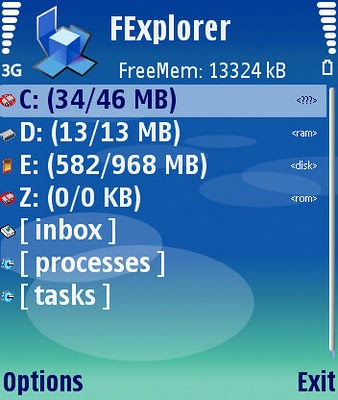
1. First of all download and install FExplorer, excellent file manager and also sends files via Bluetooth.
DOWNLOAD:
http://www.mediafire.com/?wzdzsejfksq
2. Launch FExplorer and navigate to C: if you use Phone Memory to store your messages (default) and D: if you use Storage Card as your SMS storage location.
3. Now navigate to and open “system” folder.
4. Now open the “mail” folder.
5. This folder should contain many folders named similar to 0010001_s etc. with files named similar to 00100000 etc. These files are the actual deleted messages. Simply, use the FExplorer inbuild text viewer to view these files. You will need to browse through every folder and open all files inside them until you get the required SMS.
This tool includes more great fetures like:
  • Cut, copy & paste files
  • Check date modified & size
  • Display free space available
  • View file with inbuilt text viewer
  • Cut, copy, create & paste directories
  • File find. (although this only works within a directory)
  • Take screenshots
  • Set your backlight to be permanently on
  • Send files via bluetooth. (may be necessary to rename .sis to .sis_)
  • Compress memory – increasing available free memory …and much more.
All of all FExplorer is a handy file explorer application for your Series 60 phone. With a wide range of features, tips and tricks, FExplorer will become one of your favorite mobile applications!

{android}Adobe Flash Player v10.3.185.25

Adobe Flash Player v10.3.185.25
Requirements: Android 2.2+
Overview: Bring the FULL web to your device with Flash Player- videos, games, apps & more
Flash Player enables a complete web browsing experience.

NOTE: Please check with your device manufacturer or carrier to ensure you have the latest firmware update for your device. For Android 3 tablet devices, we highly recommend that you update your OS to Android 3.1 to ensure that Flash Player delivers the best experience possible.

Flash Player delivers access to your favorite interactive content. Flash Player on your device gives you:
• The freedom to access the same rich web content you experience on a desktop PC from your mobile device - anywhere, anytime;
• Uncompromised browsing without ‘empty boxes’ on web pages.

To view some examples of how Flash Player enables you to see your favorite interactive content on your device, please visit m.flash.com on your device browser.

For optimal performance and the most immersive experience on Android 3.1 tablets, view Flash Player delivered content in full screen by using the menu buttons provided by content providers, or by tapping content once followed by a long tap to bring down a button in the upper left corner which can be tapped to enable full screen mode.

What's in this version:
1. Adobe Flash Player 10.3.185.25 addresses compatibility issues with some content using cross-domain policy files.
2. The complete set of release notes can be found at: http://adobe.ly/mccNZo

More Info: https://market.android.com/details?id=com.adobe.flashplayer

|| AVG™ AntiVirus(pro)v.2.8.1 for Android ||


AVG™ ANTIVIRUS PRO
.

The world’s most comprehensive
security software is now available
for Android™. Keep your device
safe with just one click.

.
FEATURES :
* Scan apps, settings, files, and
media in real time
* Find your lost or stolen phone
and locate it on a map
* Back up and restore all your
valuable apps and data
* Eliminate tasks that slow your
phone down
* Ensures emails, contacts,
bookmarks and text messages are
safe.
* Checks media files for
vulnerabilities
* Run daily, weekly, or on demand
* Lock or Wipe your phone remotely
via SMS or our Mobile Control
Panel
* Set a lock screen message to
help the locator find you
AVG and DroidSecurity have
partnered together to protect you
from threats on the mobile
environment.

.
With AVG Anti-Virus Pro for
Android you’ll receive effective,
advert-free virus protection, as
well as VIP tech support.

 
Design by HACKERS UNDERGROUND
HACKERS UNDERGROUND © 2012 BY RISHABH SHARMA